







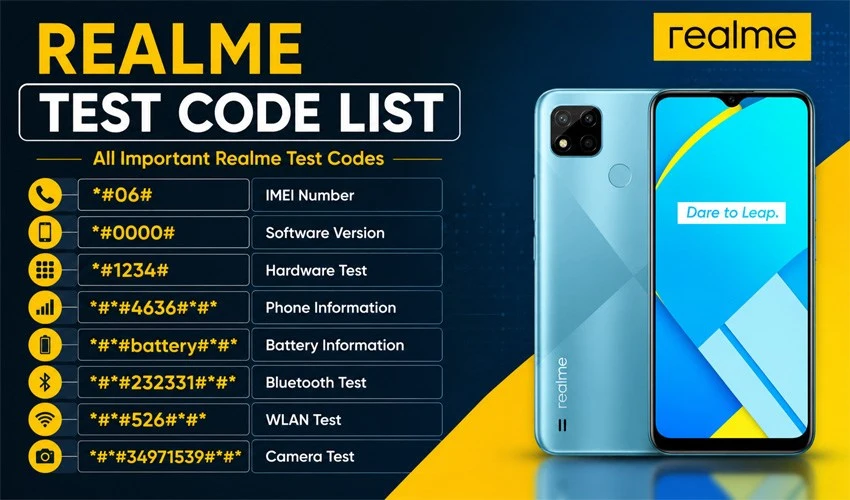
Every Realme smartphone, regardless of price or generation, ships with a set of hidden diagnostic codes built directly into the dialer app. These aren’t some obscure hacker trick — they’re the same tools Realme’s own engineers and service centers use to verify that a phone’s hardware is functioning correctly before and after it leaves the factory. The good news is that anyone can access most of these codes without rooting the device, installing third-party apps, or having any technical background. All it takes is opening the Phone app and dialing a short numeric sequence.
Whether you’ve just bought a second-hand Realme phone and want to verify its hardware is genuine and undamaged, or you’re troubleshooting a specific issue like a flickering display or unresponsive speaker, this guide walks through every major category of Realme test codes — from full engineering mode access to specific tests for the display, camera, battery, and sensors.
What Is Engineering Mode?
Before diving into the codes themselves, it helps to understand what you’re actually accessing. Realme UI includes a hidden diagnostics menu often referred to as “Engineering Mode” or the “AfterSale” page. This is a manufacturer-level testing suite normally reserved for technicians, but it’s fully accessible to regular users through a single dial code. Inside, you’ll typically find two testing paths: an automatic test that runs through every hardware component in sequence, and a manual test mode that lets you check individual components one at a time — useful if you only want to verify, say, the fingerprint sensor or the vibration motor without running a full diagnostic cycle.
The Master Code: Accessing Engineering Mode
The single most useful code on this list is:
*#899# — Opens Engineering Mode / AfterSale Page
Dialing this from the standard Phone app on most Realme devices brings up the full hardware testing suite. From here, you can typically test the following components either automatically or individually: display and touch response, front and rear cameras, earpiece and loudspeaker, microphone, vibration motor, proximity and light sensors, fingerprint scanner, Wi-Fi, Bluetooth, GPS, and battery health.
It’s worth noting that on some older Android versions, the once-universal code *#*#4636#*#* was commonly used to access a similar testing menu, but this no longer works reliably on current Realme UI builds. If you’re on a recent Realme device, *#899# is the code most likely to work.
Essential Codes Every User Should Know
Beyond full engineering mode, a few standalone codes are worth memorizing on their own:
| Code | Function |
|---|---|
*#06# |
Displays the phone’s IMEI number(s) — essential for verifying a device isn’t blacklisted or stolen before buying second-hand |
*#800# |
Opens the hidden Feedback menu for reporting bugs directly to Realme |
*#*#6776#*#* |
Shows detailed software information including Android version, kernel version, OTA version, and baseband |
*2767*3855# |
Performs a full factory format — use with extreme caution, as this wipes all data |
Display and Touchscreen Test Codes
Display issues — dead pixels, discoloration, unresponsive touch zones — are among the most common hardware complaints, especially on second-hand phones. These codes let you verify screen health directly:
| Code | Function |
|---|---|
*#*#0*#*#* |
Runs a full LCD display test, cycling through solid colors to reveal dead or stuck pixels |
*#*#2663#*#* |
Displays the touchscreen driver version |
*#*#2664#*#* |
Runs a touchscreen responsiveness test |
*#*#0842#*#* |
Tests both vibration motor and screen backlight together |
To properly check for dead pixels, run the display test and watch closely as the screen cycles through red, green, blue, black, and white. Any spot that doesn’t change color along with the rest of the screen indicates a dead or stuck pixel.
Camera Test Codes
Camera problems can be harder to catch through casual use, especially on phones with multiple lenses. This code offers a quick way to verify your camera hardware is reporting correctly:
| Code | Function |
|---|---|
*#*#34971539#*#* |
Displays detailed camera information, including sensor details for front and rear modules |
While this code doesn’t replace physically opening the camera app and taking test shots in different lighting conditions, it’s useful for confirming the phone recognizes all installed camera modules correctly — particularly relevant on devices with triple or quad rear camera setups, where a faulty ribbon cable can sometimes cause one lens to fail silently.
Battery and Power Test Codes
Battery health is one of the most important things to check, whether you’re troubleshooting unusual drain or evaluating a used phone before purchase:
| Code | Function |
|---|---|
*#*#4636#*#* |
Opens a diagnostic menu showing battery information, battery history, and usage statistics (on supported Android versions) |
*#2886# |
Initiates Factory Auto Testing, which includes a battery check as part of a broader hardware sweep |
If *#*#4636#*#* doesn’t respond on your device, the battery and power information will still be accessible through the Engineering Mode menu reached via *#899#, typically under a dedicated battery or power sub-menu.
Connectivity and Sensor Test Codes
Wireless connectivity issues can be frustrating to diagnose without dedicated tools. These codes isolate specific radios and sensors for individual testing:
| Code | Function |
|---|---|
*#*#232339#*#* |
Runs a WLAN (Wi-Fi) connectivity test |
*#*#232331#*#* |
Runs a Bluetooth connectivity test |
*#*#232338#*#* |
Displays the device’s Wi-Fi MAC address |
*#*#232337#*# |
Displays the Bluetooth device address |
*#*#1472365#*#* |
Runs a quick GPS test |
*#*#1575#*#* |
Runs an alternate, more detailed GPS test |
*#*#0588#*#* |
Tests the proximity sensor, which controls screen behavior during calls |
*#*#0283#*#* |
Runs a packet loopback test for network diagnostics |
Audio Test Codes
If you’re dealing with a crackling speaker, muffled earpiece, or unresponsive microphone, these codes can help narrow down the source of the problem:
| Code | Function |
|---|---|
*#*#0289#*#* |
Runs an audio/melody test through the device’s speaker |
*#*#7594#*#* |
Modifies the behavior of the End Call/Power button — occasionally useful when troubleshooting power button responsiveness |
Software Information Codes
Sometimes you don’t need a hardware test at all — you just need detailed software data, whether for troubleshooting, warranty claims, or general curiosity:
| Code | Function |
|---|---|
*#*#1111#*#* |
Displays FTA (Factory Test Application) software version |
*#*#2222#*#* |
Displays FTA hardware version |
*#*#3264#*#* |
Displays RAM version information |
*#*#1234#*#* |
Displays general device firmware information |
*#*#44336#*#* |
Displays build time and change list number |
A Word of Caution Before You Start Dialing
While the vast majority of these codes are read-only diagnostic tools that simply display information or run a passive test, a handful — particularly factory reset and factory format codes — will erase data or alter device settings if triggered. Before experimenting with any code you’re unfamiliar with, it’s worth backing up important photos, contacts, and files first. Stick to the display, camera, battery, and connectivity test codes listed above if your goal is simply diagnostics, and avoid anything explicitly labeled as a reset or format function unless that’s genuinely your intention.
It’s also worth noting that not every code works identically across all Realme models and Realme UI versions, since some diagnostic tools have been consolidated into the unified Engineering Mode menu over successive software updates. If a specific code doesn’t respond on your device, dialing *#899# and manually navigating to the relevant test category is usually a reliable fallback.
Final Thoughts
These secret test codes exist for a good reason: they give everyday users the same diagnostic power that Realme’s own technicians rely on, without needing special tools or software. Whether you’re buying a used Realme phone and want peace of mind before handing over cash, or you’re simply trying to pin down why your speaker sounds off, running through this list takes only a few minutes and can save you an unnecessary trip to a service center. Keep this guide bookmarked the next time you need to double-check your Realme phone’s hardware health.