







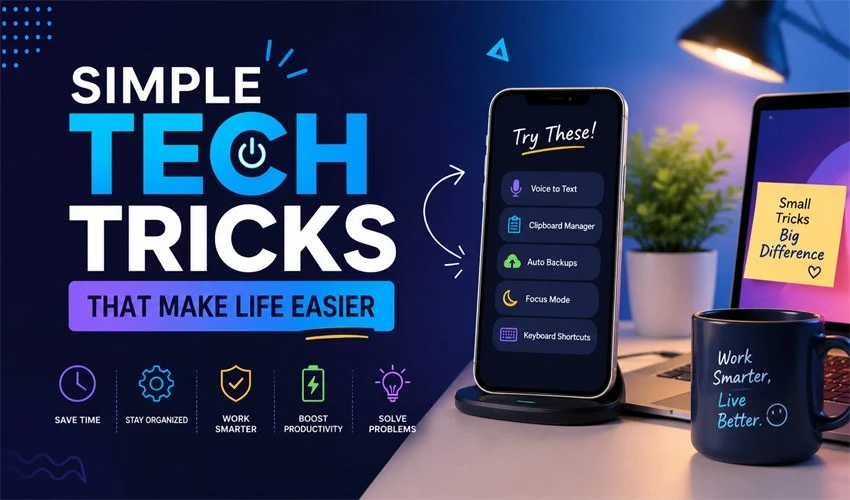
Technology is supposed to make life easier — but for many people, it often feels like the opposite. Between overwhelming apps, constant notifications, forgotten passwords, and devices that seem to have a mind of their own, the digital world can feel more like a burden than a blessing.
Here’s the good news: you don’t need to be a tech genius to get the most out of your devices. A handful of simple, smart habits and shortcuts can transform the way you use technology every day. Whether you’re a busy professional, a parent juggling a dozen responsibilities, or someone who just wants their phone to stop draining by noon, these 25 easy technology tricks are designed for real life.
No jargon. No complicated setups. Just practical tech tips that actually work.
Smartphone Tricks That Save Time
1. Use Voice Assistants for Hands-Free Tasks
Siri, Google Assistant, and Alexa aren’t just novelties — they’re genuine time-savers. Ask your voice assistant to set timers, send texts, play music, answer quick questions, or even navigate while you’re driving. The key is trusting it enough to actually use it. Start with one or two daily habits, like asking it to set your morning alarm or remind you to take medication, and you’ll quickly wonder how you managed without it.
2. Schedule Do Not Disturb Hours
Constant notifications are one of the biggest sources of digital stress. Your phone’s “Do Not Disturb” feature (available on both iPhone and Android) lets you block all notifications during specific hours — say, during meals, work focus sessions, or sleep. You can still allow calls from specific contacts in emergencies. Setting this up once gives you back hours of uninterrupted time every week.
3. Use Text Replacement for Phrases You Type Often
If you find yourself typing your email address, home address, or standard replies dozens of times a day, text replacement is a game-changer. On iPhone, go to Settings → General → Keyboard → Text Replacement. On Android, it’s in your keyboard settings. Create a shortcut like “@@” that auto-expands to your full email address. It takes two minutes to set up and saves countless keystrokes.
4. Charge Smarter with Low Power Mode
Instead of scrambling for a charger at 15% battery, turn on Low Power Mode earlier — around 30–40%. This temporarily reduces background activity and extends your battery life by hours. It’s particularly useful during travel or long days away from an outlet. Both iPhone and Android have this feature, and it makes a noticeable difference.
5. Use Airplane Mode to Charge Faster
When you need to charge quickly, switch your phone to Airplane Mode before plugging it in. Without the constant drain from cellular signals, Wi-Fi, and Bluetooth searching, your phone can charge up to twice as fast. This small trick is a lifesaver before heading out the door.
Computer and Productivity Hacks
6. Master the Art of Keyboard Shortcuts
Learning just five or six keyboard shortcuts can dramatically speed up your computer use. The most universally useful ones include:
- Ctrl+Z / Cmd+Z — Undo your last action
- Ctrl+C / Cmd+C — Copy
- Ctrl+V / Cmd+V — Paste
- Ctrl+T / Cmd+T — Open a new browser tab
- Alt+Tab / Cmd+Tab — Switch between open windows
- Ctrl+F / Cmd+F — Find text on a page
These shortcuts work across nearly every application and can save you several minutes every hour.
7. Use Multiple Browser Tabs Smartly with Tab Groups
If you always have 20+ browser tabs open, Tab Groups (available in Chrome, Edge, and Safari) let you organize them by category — Work, Shopping, Research, Personal. Right-click any tab to create a group and assign it a color. You can collapse entire groups when not in use, keeping your browser clean and your mind less cluttered.
8. Declutter Your Desktop with Virtual Desktops
Both Windows and Mac allow you to create multiple virtual desktops — essentially separate workspaces on one screen. Use one desktop for work, another for personal browsing, and another for creative projects. On Windows, press Windows + Tab to access Task View. On Mac, swipe up with four fingers on the trackpad. This simple trick dramatically reduces the chaos of multitasking.
9. Use Cloud Storage to Access Files Anywhere
If you’re still saving everything only to your computer’s hard drive, you’re one crash away from losing everything. Free cloud storage services like Google Drive (15GB free), OneDrive (5GB free), and Dropbox (2GB free) automatically back up your files and let you access them from any device. Make it a habit to save important documents directly to your cloud folder.
10. Set Up Two-Factor Authentication on Important Accounts
Passwords alone are no longer enough to protect your important accounts. Two-factor authentication (2FA) adds a second layer of security by requiring a code sent to your phone or email when you log in from a new device. Enable it on your email, banking, and social media accounts. Most platforms have this in Settings → Security. It takes two minutes to set up and significantly reduces your risk of being hacked.
Internet and Online Life Made Easier
11. Use a Password Manager
The average person has over 100 online accounts. Remembering a unique, strong password for each one is impossible — which is why most people reuse the same weak password everywhere, creating a major security risk. A password manager like Bitwarden (free), LastPass, or 1Password remembers all your passwords and fills them in automatically. You only need to remember one master password. It’s one of the single most impactful tech changes you can make.
12. Use Incognito Mode When Sharing Devices
When using a shared or public computer, always browse in Incognito or Private Mode (Ctrl+Shift+N in Chrome). This prevents the browser from saving your history, passwords, or form data after you close the window. It’s quick, easy, and essential for protecting your privacy.
13. Bookmark Your Most-Visited Sites
If you visit the same five or ten websites every day, bookmark them and organize them in your browser’s bookmark bar. This eliminates the time spent typing URLs or searching for sites. Take fifteen minutes to audit your bookmarks and organize them into folders — it’s a small organizational win that pays off every single day.
14. Use Reader Mode for Distraction-Free Reading
Most browsers include a Reader Mode that strips away ads, sidebars, and pop-ups from articles, leaving only the text and images. In Safari, look for the lines icon in the address bar. In Firefox, it’s the book icon. This makes long-form reading much more pleasant and reduces digital eye strain significantly.
15. Set Up Google Alerts for Topics You Care About
Instead of spending time hunting for news on topics you follow, let the news come to you. Google Alerts (alerts.google.com) lets you enter any keyword — your name, your industry, a competitor, a hobby — and sends you an email whenever that topic appears in new online content. It’s a free, effortless way to stay informed without doom-scrolling.
Smart Home and Device Management
16. Use Smart Plugs to Automate Ordinary Devices
Smart plugs are one of the easiest entry points into home automation. Plug one into any standard outlet, connect it to Wi-Fi, and you can control any device plugged into it — a lamp, a coffee maker, a fan — using your phone or voice commands. You can set schedules so your coffee starts brewing before you wake up or your porch lights turn on at sunset. No rewiring. No expertise required.
17. Create a Wi-Fi Guest Network
If you frequently have visitors who need your Wi-Fi password, create a separate guest network through your router settings. This keeps your main network (and all the devices on it) secure, while still giving guests full internet access. Most modern routers support this in their app or admin panel.
18. Label Your Cables
This sounds almost embarrassingly simple — but labeling your cables with small sticky tags or cable labels saves enormous frustration. You’ll never again wonder which black cable goes where, or accidentally unplug the wrong device. Use a label maker, masking tape, or colored cable ties. It’s a five-minute investment that pays dividends every time you need to manage your tech setup.
19. Use Your TV as a Second Monitor
If you have a smart TV with an HDMI port, you can use it as a large second monitor for your laptop. This is particularly useful for video calls, presentations, or working on large spreadsheets. Simply connect with an HDMI cable or use screen mirroring wirelessly (AirPlay for Apple devices, Miracast for Windows). It instantly expands your workspace without buying additional hardware.
20. Automate Bill Payments and Subscriptions
Most banks and service providers allow you to set up automatic payments for recurring bills. Automating your rent, utilities, subscriptions, and loan payments eliminates late fees, saves time, and reduces the mental load of remembering due dates. Pair this with a monthly calendar reminder to review your automated payments and make sure nothing unexpected has changed.
Digital Wellness and Focus Tricks
21. Use App Timers to Reduce Mindless Scrolling
Most smartphones have built-in Screen Time (iPhone) or Digital Wellbeing (Android) tools that let you set daily time limits for specific apps. Set a 30-minute limit on Instagram or TikTok and your phone will gently remind you when you’ve hit it. This simple friction is often enough to break the habit of mindless scrolling without requiring willpower alone.
22. Turn Off Non-Essential App Notifications
Go to your phone settings and audit which apps are allowed to send you notifications. Most apps default to “all notifications on” — but you almost certainly don’t need push alerts from your grocery app, news aggregator, or shopping sites. Keeping only essential notifications (messages, calls, calendar reminders) dramatically reduces distraction and reclaims your attention.
23. Use Night Mode and Blue Light Filters
Staring at screens late at night disrupts your sleep by suppressing melatonin production. Enable Night Mode or Night Shift on your phone and computer (usually found in Display settings) to shift the screen’s color temperature to warmer tones after sunset. Many devices can automate this based on sunrise and sunset times in your location. It’s a small tweak with meaningful benefits for your sleep quality.
24. Back Up Your Phone Weekly
Losing your phone — or having it damaged — is stressful enough without also losing years of photos, contacts, and data. Set up automatic weekly (or even daily) backups to iCloud, Google Photos, or your computer. Both iPhone and Android make this straightforward in Settings → Backup. This single habit can save you from a devastating data loss situation.
25. Learn to Use the Search Function Everywhere
This might be the most underrated tech trick of all. Almost every app, platform, and operating system has a powerful search function — but most people don’t use it. Your email, your phone’s file system, your notes app, your computer’s desktop: all searchable in seconds. Instead of scrolling endlessly for a file or email you vaguely remember, just search for a keyword. On Mac, Spotlight (Cmd+Space) searches everything at once. On Windows, the Start menu search does the same. Master search, and you master your digital life.
Bringing It All Together
The beauty of these easy technology tricks is that none of them requires advanced skills, expensive equipment, or hours of learning. Each one is a small, practical change — but small changes compound. If you implement even five or ten of these tips, you’ll notice a real difference in how smoothly your digital life runs.
The goal of technology has always been to serve people — to make tasks faster, communication easier, and daily life more manageable. The problem is that most of us were never taught how to actually use our devices well. We learn just enough to get by, and then stick with those habits forever.
Start with one or two tricks from this list that feel immediately relevant to your daily frustrations. Master those, then add a few more. Within a month, you’ll have quietly transformed your relationship with the technology you already own — without spending a single rupee on new gadgets.
Technology doesn’t have to be complicated. With the right habits in place, it can be exactly what it was always meant to be: simple, helpful, and quietly working in the background of your best life.
Have a tech trick that changed your life? The best technology tips are the ones shared between people — because the simplest solutions are often hiding in plain sight.