






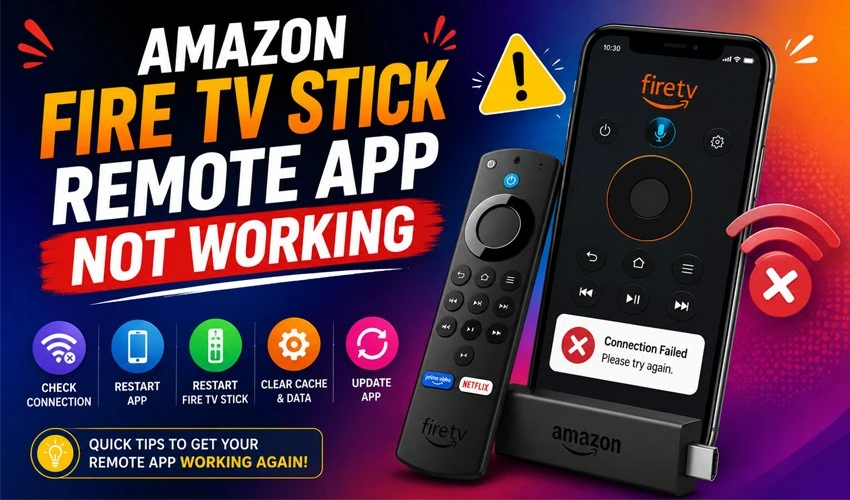
If you’ve ever reached for your phone to control your Fire TV Stick only to find the Amazon Fire TV app frozen, unresponsive, or refusing to connect, you know how frustrating it can be. The Fire TV remote app is a genuinely useful backup — handy when your physical remote goes missing, runs out of batteries, or simply stops responding. But like any app that relies on a stable network connection, it can run into glitches.
The good news is that most of these problems have simple explanations and even simpler solutions. Before you consider buying a replacement remote or resetting your entire device, work through the fixes below. In most cases, one of them will get your app back up and running within a few minutes.
Why the Fire TV Remote App Stops Working
Before jumping into solutions, it helps to understand what’s actually happening behind the scenes. The Fire TV app doesn’t communicate with your streaming device using Bluetooth the way a physical remote does. Instead, it sends commands over your Wi-Fi network. This means the app depends on:
- Both your phone and Fire TV Stick being connected to the same Wi-Fi network
- A stable, low-latency internet connection
- Properly functioning Amazon software on both ends
- Correct account login credentials matching on both devices
When any one of these links breaks, the app can freeze, lag, fail to detect your device, or stop sending commands altogether. Once you know this, most fixes will make a lot more sense.
1. Confirm Both Devices Are on the Same Wi-Fi Network
This is the single most common cause of connection failure. If your phone is connected to a guest network, mobile data, or a different Wi-Fi band (like 5GHz while your Fire TV Stick uses 2.4GHz), the app simply won’t be able to find your device.
Open your phone’s Wi-Fi settings and check the exact network name it’s connected to. Then go to your Fire TV Stick’s Settings > Network and confirm it matches. If your router broadcasts separate 2.4GHz and 5GHz networks, try switching your phone to the same band the Fire TV Stick is using.
2. Restart the Fire TV Remote App
It sounds obvious, but a simple force-close and reopen fixes a surprising number of glitches. On most smartphones, you can:
- Swipe up (or press the recent apps button) to see all open apps
- Find the Fire TV app and swipe it away or force-stop it
- Reopen the app and try reconnecting to your device
This clears any temporary memory issues or stuck processes without affecting your settings or login.
3. Restart Your Fire TV Stick
Sometimes the problem isn’t your phone at all — it’s the streaming device itself. Unresponsive background processes on the Fire TV Stick can prevent it from accepting new remote connections.
To restart it, go to Settings > My Fire TV > Restart, or simply unplug the device from power, wait about 30 seconds, and plug it back in. Give it a minute or two to fully reboot before trying the app again.
4. Restart Your Phone
If restarting both the app and your Fire TV Stick hasn’t helped, your phone may be the culprit. Background apps, low memory, or a stuck network connection on your phone can all interfere with the Fire TV app’s ability to communicate properly. A full restart clears out these lingering issues far more thoroughly than simply closing the app.
5. Check for App Updates
Outdated apps are a frequent source of bugs, especially after Amazon rolls out changes to how the Fire TV ecosystem works. Head to the Google Play Store or Apple App Store, search for “Amazon Fire TV,” and check whether an update is available. If so, install it and restart your phone afterward for good measure.
6. Update Your Fire TV Stick Software
Just like the app, your Fire TV Stick itself needs to run current software to communicate properly. To check for updates:
- Go to Settings > My Fire TV > About > Check for Updates
- If an update is available, allow it to download and install
- Restart the device once the update completes
Keeping both the app and the device firmware updated ensures they’re speaking the same “language.”
7. Sign Out and Sign Back Into Your Amazon Account
Account mismatches can quietly break the connection between your phone and your Fire TV Stick. If you recently changed your Amazon password, switched accounts, or manage multiple Amazon households, this is worth checking first.
In the Fire TV app, go to Settings, sign out completely, then sign back in using the same Amazon account associated with your Fire TV Stick. Confirm the account on the Fire TV Stick itself matches under Settings > My Account.
8. Re-Pair the App With Your Device
Sometimes the app needs a fresh connection entirely. Within the Fire TV app, look for an option to “Add Device” or reselect your Fire TV Stick from the device list. If your Fire TV Stick doesn’t appear:
- Make sure it’s powered on and not in sleep mode
- Confirm it’s connected to Wi-Fi (check under Settings > Network)
- Try refreshing the device list within the app
9. Check Your Router and Network Stability
A weak or overloaded Wi-Fi network can cause delayed button presses, dropped connections, or a complete failure to connect. If multiple devices are streaming, downloading, or gaming on your network simultaneously, your Fire TV Stick’s connection quality can suffer.
Try these quick network checks:
- Move your router closer to your Fire TV Stick, or vice versa
- Restart your router by unplugging it for 30 seconds
- Temporarily disconnect other bandwidth-heavy devices
- Consider a Wi-Fi extender if your Fire TV Stick is far from the router
10. Disable VPN or Firewall Software
If you use a VPN on your phone or have strict firewall settings on your router, these can block the local network communication the Fire TV app relies on. Try temporarily disabling any VPN on your phone and see if the app connects. If it does, you may need to adjust your VPN split-tunneling settings or exclude local network traffic from the VPN.
11. Reinstall the Fire TV App
If nothing else has worked, a clean reinstall often resolves stubborn bugs that updates alone can’t fix. Uninstall the Fire TV app completely from your phone, restart your phone, then download it fresh from the app store. Log back in and attempt to reconnect to your device.
12. Factory Reset the Fire TV Stick (Last Resort)
If your Fire TV Stick still won’t connect to the app after trying everything above, and you’ve also noticed other performance issues with the device itself, a factory reset may be necessary. This should be your last option since it erases all settings and installed apps.
To reset: Settings > My Fire TV > Reset to Factory Defaults. After the reset, you’ll need to set up the device again from scratch, including reinstalling the Fire TV app connection.
Quick Troubleshooting Checklist
If you want a fast rundown to work through, here’s the order most people find effective:
- Confirm same Wi-Fi network and band
- Restart the app
- Restart the Fire TV Stick
- Restart your phone
- Update the app
- Update the Fire TV Stick software
- Sign out and back into your Amazon account
- Re-pair the device in the app
- Check router and network stability
- Disable VPN/firewall temporarily
- Reinstall the app
- Factory reset as a last resort
When to Use a Physical Remote Instead
While the Fire TV app is convenient, it’s worth remembering that it was designed as a supplementary tool, not a full replacement for your physical remote. If you frequently rely on the app because your original remote is lost or damaged, it may be worth purchasing a replacement remote directly through Amazon rather than depending solely on your phone’s Wi-Fi connection, which can be affected by network conditions outside your control.
Final Thoughts
Most Fire TV Stick remote app issues come down to one of two things: a network mismatch between your phone and your device, or outdated software on one end of the connection. Working through the fixes in order — starting with the simplest restarts and updates before moving to reinstalls or resets — will resolve the vast majority of connectivity problems without needing any technical expertise.
If you’ve tried everything above and the app still won’t cooperate, it may be worth reaching out to Amazon’s official support channels, as there could be a broader service issue affecting your account or region. But for the overwhelming majority of users, one of these twelve steps will have your Fire TV Stick responding to your phone again in no time.